This video demonstrates how to use the prescribing system for safe, comprehensive medication reviews. Admin staff can send out automated questionnaires, with 80% of responses not requiring follow-up. The system includes tools for monitoring medications, setting review dates, and recording notes-based reviews, ensuring all safety checks are completed efficiently.
Or if you prefer a step-by-step guide:
Step-by-Step Guide for Using the Prescribing System for Notes-Based Medication Review
1. Automate or Bulk Send Med Review Questionnaires
- Automation: Set up the system to automatically send out medication review questionnaires to patients.
- Bulk Sending: Alternatively, your admin team can manually send questionnaires to patients in bulk.
2. Monitor Patient Responses - Reports for these patients are found in Welby Innovate Prescribing - 2 Med Reviews.
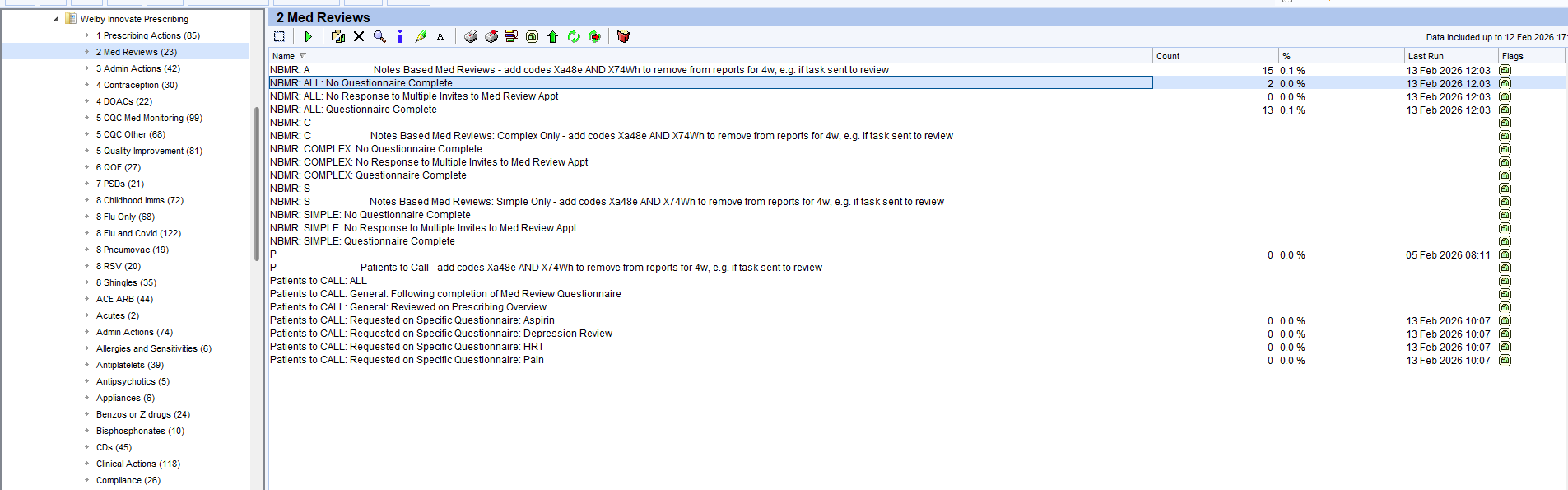
- Notes Based Med Reviews: We have broken down these Notes Based Med Review reports into different categories. Within these categories are further break downs to explain why the patients are in these reports, such as no questionnaire completed, no response to multiple invites for medication review appointment and questionnaire completed. These are also broken down between simple and complex.
- Patients to Call: These reports will only populate if you have told us that you are not inviting patients in to book appointments, but are working off lists to call them. There is a report for all of them, or reports broken down by questionnaire type.
3. Open the patient record
4. Navigate to the Prescribing Overview Template -
- Toolbar Access: If frequently used, add the prescribing overview template to your toolbar for easy access.
- Alternative Access: Access the template from the demographics box if not on the toolbar.
5. Review Patient Questionnaire Responses
- Complete Responses: Ensure questionnaire responses indicate understanding of medication usage and effectiveness.
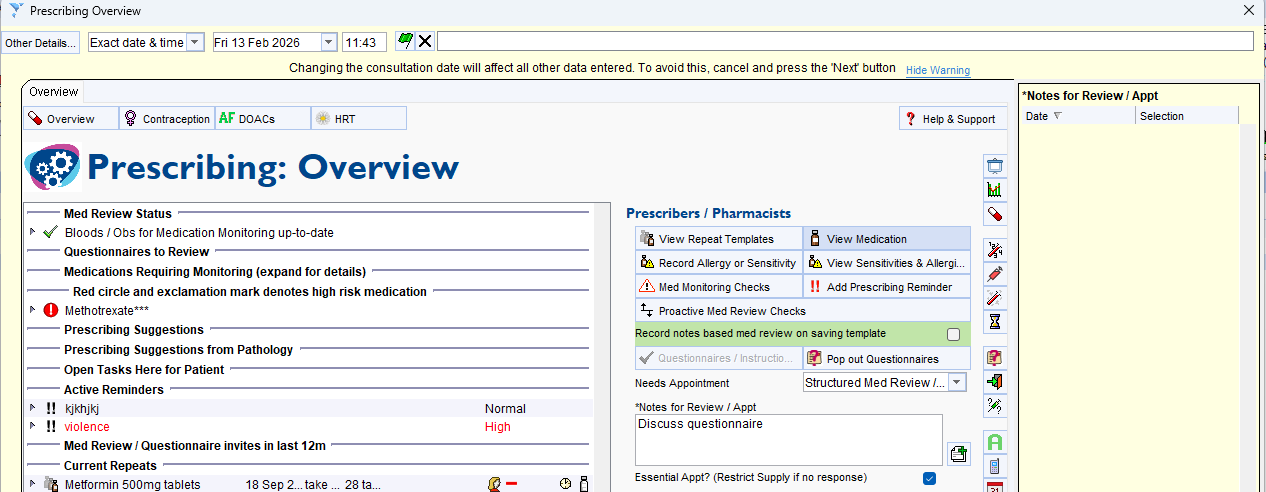
- Flag for Discussion: If the responses suggest a need to discuss, note this for further action. You can do this from the Prescribing: Overview template in using the section shown below "Needs Appointment" and choose the appropriate option along with a note for information. If the appointment is ticked as essential, if they do not respond then it will look at reducing medication.
- If not, proceed with the notes-based review
Proactive medication review checks - To assist with medication reviews we have developed new proactive medication review checks. The checks will run through all the things our system picks up that need to be considered for the patient. It will also help you decide how to manage these patients and their outcomes. Further information and what this checks can be found in our article for this
Prescribing Instructions: Proactive Prescribing Checks : Welby Innovate
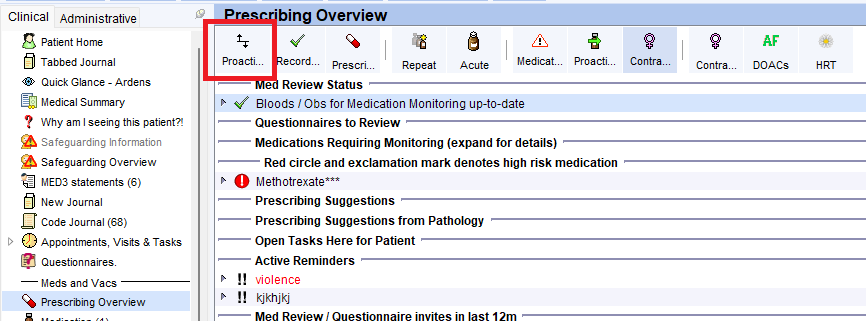
6. Views access - If you have the Prescribing Overview view enabled on your clinical tree, there is a button at the top left to access the checks.
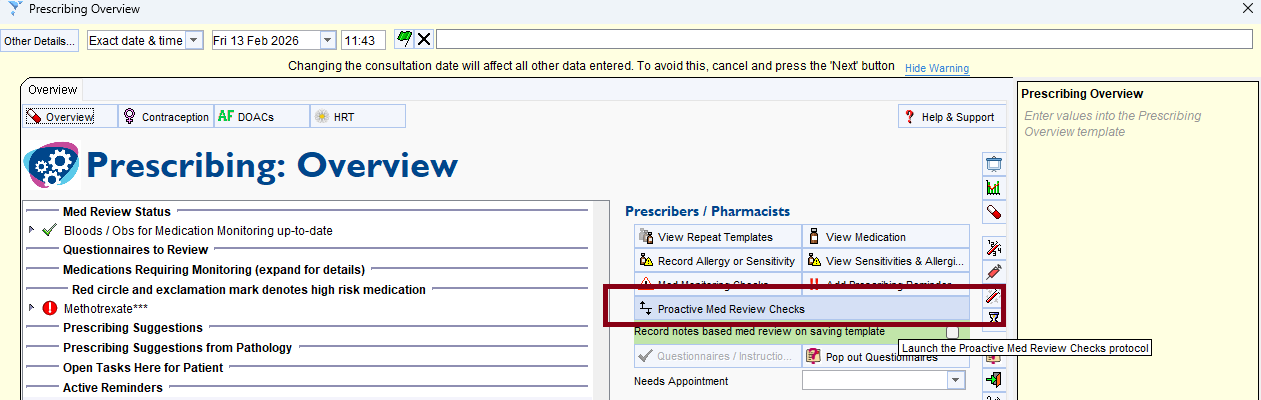
Template access - If you do not use this view, you can access the checks via the Prescribing overview template
Toolbar access - This can also be added to your toolbar if your practice allows you to configure your own.
7. Run the checks - Click the Proactive Med Review Checks button via one of the above access options. Different pop ups/actions will appear for each patient.
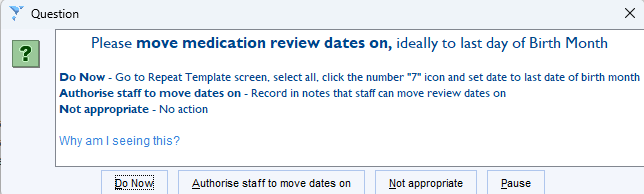
8. Actioning the checks - For this example patient below, the following warnings pop up. Each individual check needs actioning using the options given.
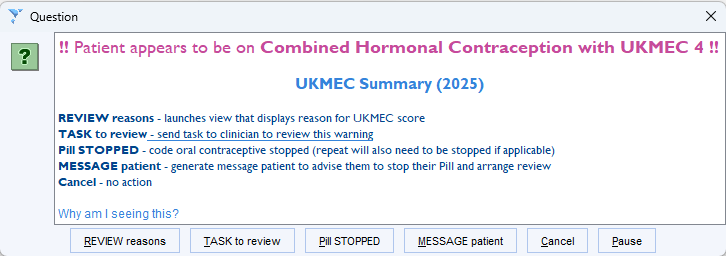
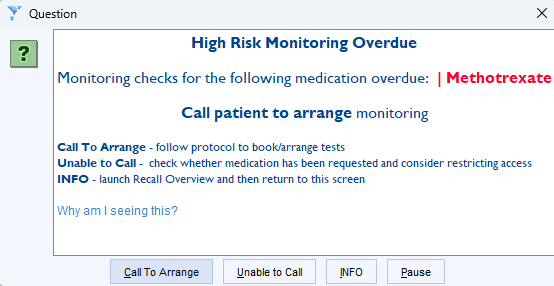
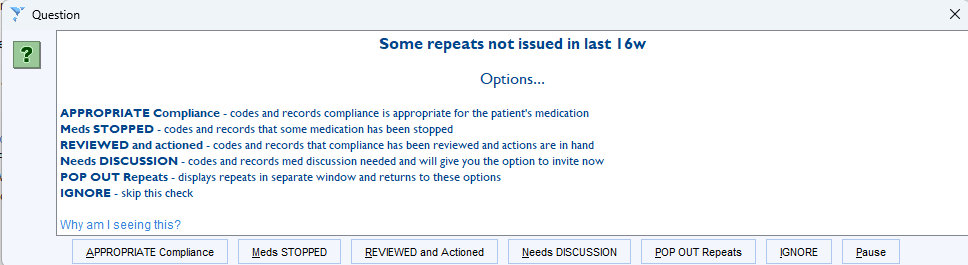
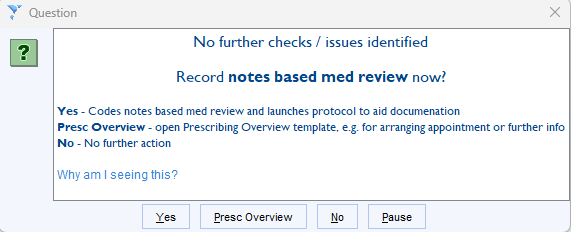
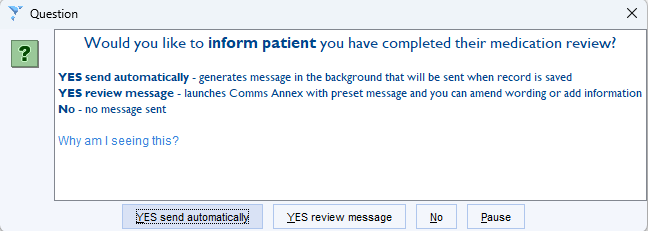
Once all checks have been actioned, it will ask if you wish to record a notes based med review now, if you would like to inform the patient you have done so, and then prompt you to reauthorise the medication.
Was this article helpful?
That’s Great!
Thank you for your feedback
Sorry! We couldn't be helpful
Thank you for your feedback
Feedback sent
We appreciate your effort and will try to fix the article