This video explains how to use our Prescribing Action reports we have made to support safe prescribing in your practice.
We have divided these into High, Medium and Routine priority so you can choose which work you want to focus on.




High priority alerts - Each of these high priority alerts are linked to an icon on the patients demographics. If you see this icon a patient record, they are in one of these high alert reports, and clicking the icon will inform you what the alert is, and where possible, suggested actions to manage the patient and remove them from the reports.

In this example below, the patient is on 2 different types of oral anticoagulants. This alert is information only with no action associated as it is clear what needs to be done.

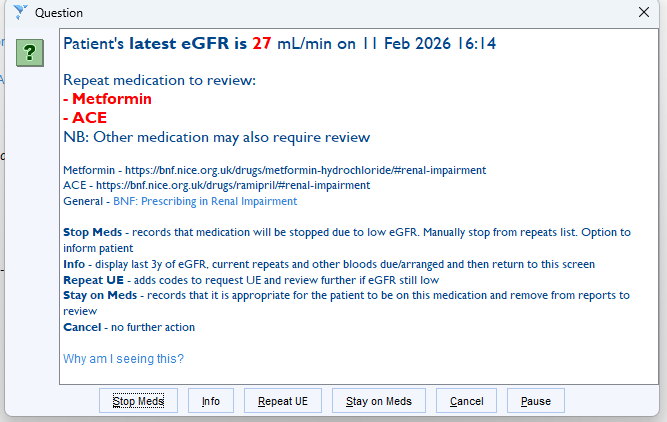
In this other example, the patient is on medication but the latest eGFR result shows renal impairment. The pop up will tell you which medication needs reviewing and give you the below options to action the warning.
If you would prefer administration staff to look at the reports and either send tasks for review, or book appointments directly. the below codes can be added which will remove the patients from the reports for 4 weeks, or until action has been taken. These codes are stated in each priority report category.

Was this article helpful?
That’s Great!
Thank you for your feedback
Sorry! We couldn't be helpful
Thank you for your feedback
Feedback sent
We appreciate your effort and will try to fix the article