We have developed prompts for GPs/Clinicians to appear to assist with actioning any work the system has identified needs doing. The video below explains how these work.
To activate these prompts in your practice, follow the below instructions.
Step-by-Step Guide: Activating Prompts for GPs/Clinicians
Step 1: Access Workflow Support and Protocols
- Go to Setup.
- Navigate to Workflow Support > Protocols.
- Click on Welby Innovate > Prompts.
Step 2: Locate the Local Prompt Master(s)
There are 2 Prompt masters for GP/Clinicians. One will activate when a consultation is started, informing the GP/Clinician what work to be done has been identified. The other will launch when the record is saved, asking them to confirm if they have actioned the work identified.
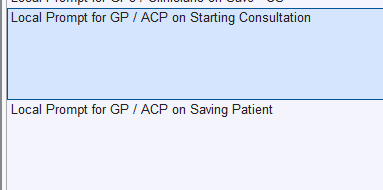
Step 3: Copy the protocol to create a local copy unique to your practice (You will need to do this process for both protocols, they will not work properly otherwise)
- Select the protocol and choose "Copy protocol"
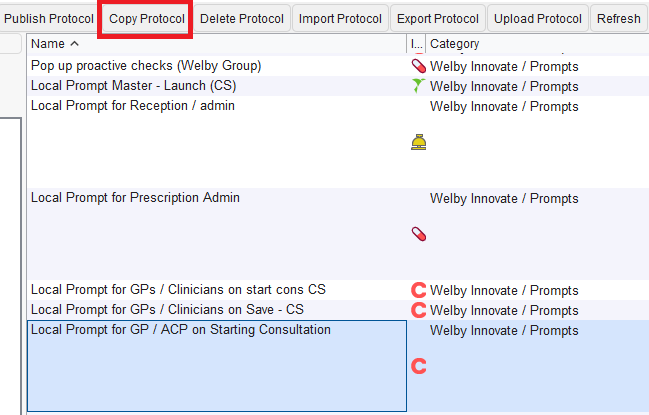
- Rename it to reflect your practice (e.g., Cleveland surgery - Local prompt for GP/ACP on Starting Consultation)

Step 4: Activate Prompts for Relevant Staff
- By default, the prompts are not activated. This gives you control over who receives them.
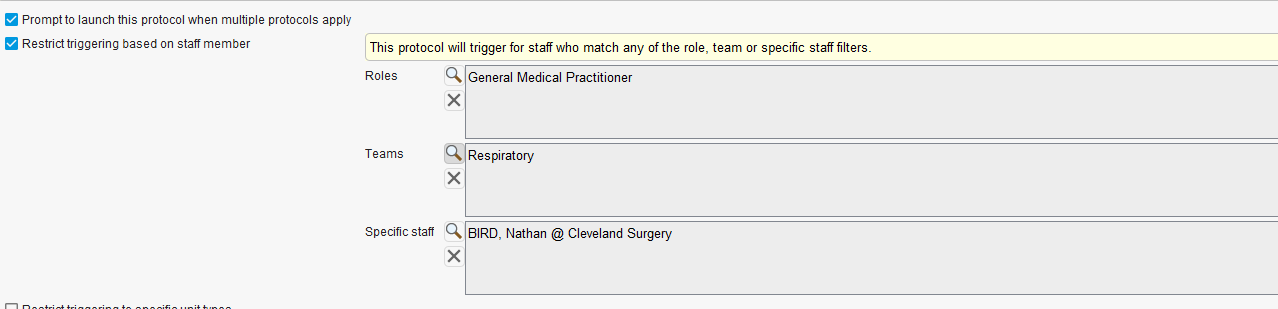
- To activate prompts for specific staff, we have listed the instructions in the description of both prompts. Note the trigger to activate each prompt is different and stated on the description. Once you have restricted triggering based on staff member, you can select staff by roles, teams or specific staff.
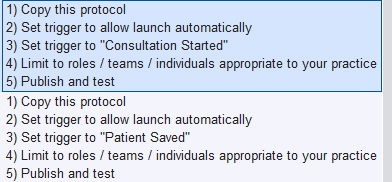
Step 5: Publish the Protocol
- Once you've configured the prompt, save and publish it.
- This activates the prompts for the selected staff.
Step 6: Edit and Adjust the Prompts as Needed
- After publishing, you can return and amend the prompt to adjust which staff receive it.
- Tip: If staff are getting duplicated prompts, ensure you assign roles carefully to avoid overlaps.
- Remember to update the prompts regularly to include any new staff members, locums or role changes, as the prompts will not appear for roles, teams or staff members not selected in the trigger tab
Was this article helpful?
That’s Great!
Thank you for your feedback
Sorry! We couldn't be helpful
Thank you for your feedback
Feedback sent
We appreciate your effort and will try to fix the article