When patients contact the practice, we'd recommend getting into the habit of retrieving the record before booking any appointments.
This gives the opportunity for any prompts to be triggered automatically (if your practice has configured those - How do I activate prompts for Admin and Reception staff?) or you can manually launch our Booking Prompt Master by clicking on the green "A" in the demographics status alert:

If there is no green "A", it means our systems haven't identified anything that needs to be booked for the patient.
The Booking Prompt will work out which prompt to display, e.g. if a patient needs monitoring blood tests and their annual review, it will only prompt you to book the annual review. Occasionally it will display more than one prompt, e.g. if a patient needs an annual review booking and a follow up appointment with a GP.
The prompts all provide text that can be read out to the patient and options for action, e.g.
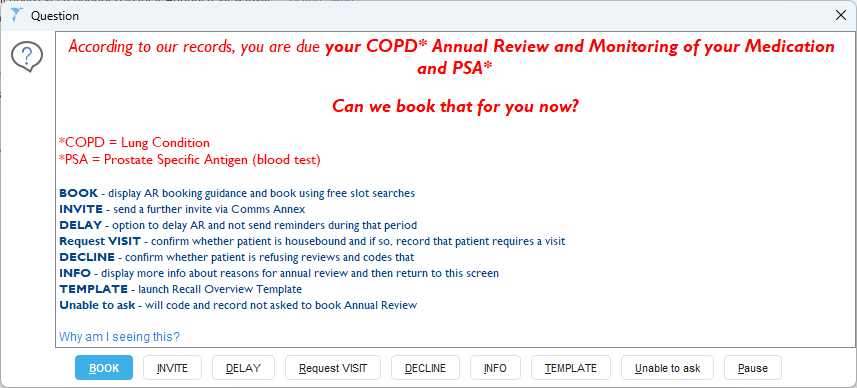
Generally the first option is to book, and should be the one that's used most often. It will normally then display exactly what needs to be booked using free slot searches, e.g.
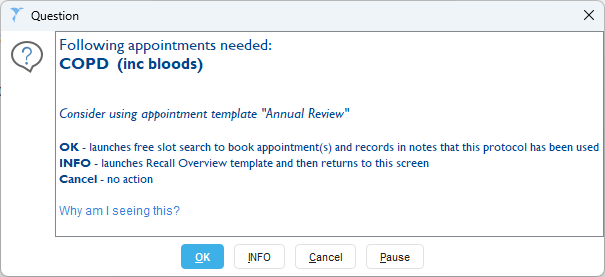
This video shows how this works in practice:
Was this article helpful?
That’s Great!
Thank you for your feedback
Sorry! We couldn't be helpful
Thank you for your feedback
Feedback sent
We appreciate your effort and will try to fix the article