The coloured annual review status alert icons appear on the patient demographic box, and show you where the patient is in their annual review process for the current QOF year. The system default is to show three icons of different shapes, as below.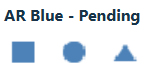
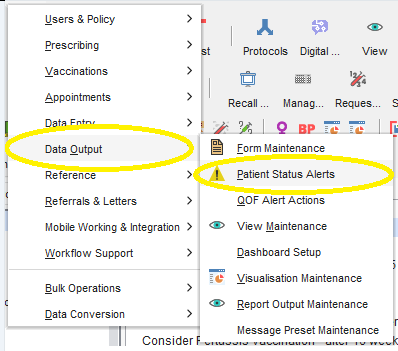
All three icons do the same thing when you click on them. You can keep all three, or you can disable one or two if you prefer. To disable a shape, first go to Patient Status Alerts in SystmOne as below.
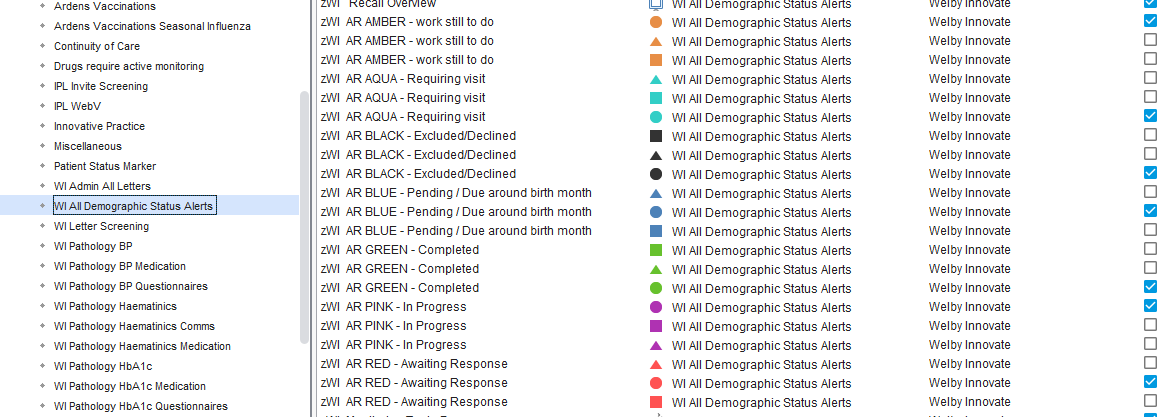
Go to the folder WI All Demographic Status Alerts, then untick the box next to the shapes you don't want to display. In the example below, all the status alerts for triangles and squares have been disabled, leaving the circles enabled and therefore showing on the demographics box.
Was this article helpful?
That’s Great!
Thank you for your feedback
Sorry! We couldn't be helpful
Thank you for your feedback
Feedback sent
We appreciate your effort and will try to fix the article