First, you'll need to make sure you have the Auto-Review engine rules enabled (How do I activate the Pathology Auto-Review Rules Engine?).
When you first start using pathology, your practice will be configured to only file satisfactory results where no further action is required. As you start to roll out the full module, we will work with you to gradually enable filing abnormal results where actions are managed through clinical reports and automations (see Processing Pathology Results for more information).
You can check your setup by running the clinical reports in the folder Welby Innovate Pathology /
Localisation. Each section in this folder starts with a report like this one:

If the count for this report roughly matches your list size, it means that result is configured to only file satisfactory results.
To enable specific Auto-Review rules...
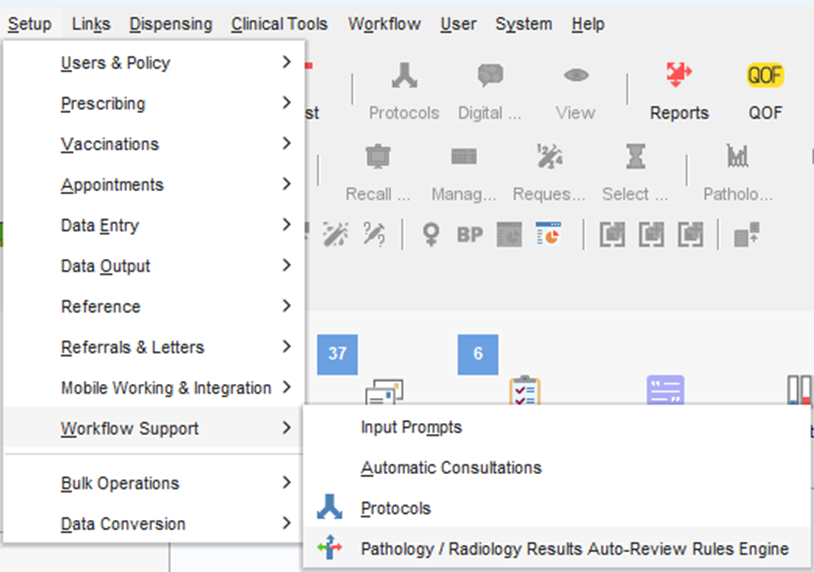
Navigate to the Pathology/Radiology Results Auto-Review Rules Engine:
Order the rules by investigation:
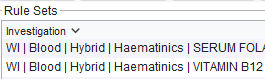
All of our rules start with "WI", then type of test, e.g. Blood, then the type of rule:
- Hybrid = the rule will behave according to your practice setup. If its enabled, it will file many abnormal results as well as normal. Otherwise, it will only file satisfactory results.
- Satisfactory = the rule only ever files satisfactory results where no further action is needed.
- Unknown = the rule will file the result as unknown because the actual result isn't yet present, or the result is not negative/positive or satisfactory/abnormal. This type of rule is much less common.
Work through the list of rules, making active the rules you want to use by clicking the box to make them active. The name of each rule name explains what the rule applies to and how it works.
For example:
WI | Blood | Satisfactory | LFT | X77WP | Files if Normal on lab report or All investigations are within normal range - Liver function tests (X77WP)
WI = Welby Innovate
Blood = Relates to blood results
Satisfactory = Only files satisfactory results where no further action is required
LFT = Relates to LFTs
X77WP = The specific code or title the rule is looking for
Files if Normal on lab report or All investigations are within normal range = How the rule works
- Liver function tests (X77WP) = added by SystmOne, the code or title the rule works on
You can see more detail on the right hand side where each stage of the rule appears:
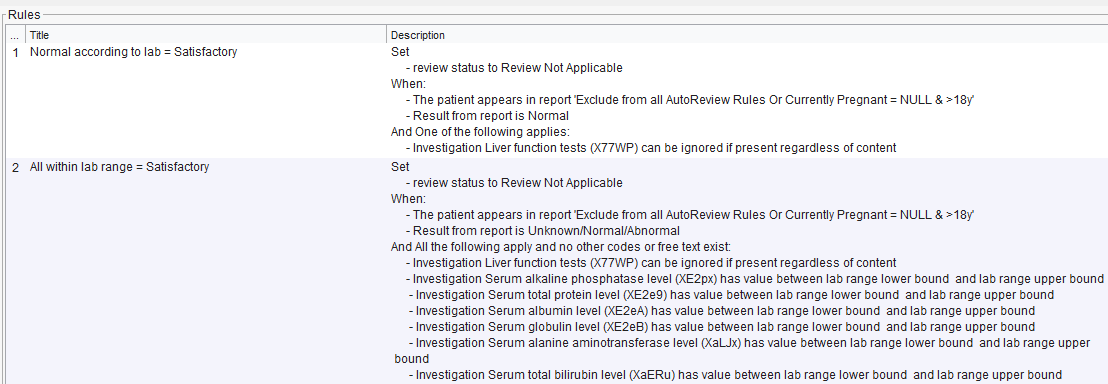
We try to make our titles self explanatory and then you can see more detail yet with how the rule works. This is likely to be a level detail beyond what most practices will want to delve into but all the information is there if you want to see it.
Things to be aware of...
- Its possible to mix and match rules that you use. All of our rules start with "WI |" but you may already have rules of your own or provided by others that you want to use too. The one thing you can't do is have multiple rules enabled that are trying to file the same result.
- In many cases we have multiple versions of the same rule available. This is because we work with practices using different labs. For example, most labs return LFTs against the code "Liver Function Tests (X77WP)" but there are some that use a free text heading of "Liver" or similar. Rather than worry about which ones your lab uses, you can turn them all on and SystmOne will only apply the rules that work for your lab.
- If in doubt, don't enable a rule. Its better to start slowly and gradually build up.
Was this article helpful?
That’s Great!
Thank you for your feedback
Sorry! We couldn't be helpful
Thank you for your feedback
Feedback sent
We appreciate your effort and will try to fix the article