This is a easy guide for Practices on how to change the Clinical tree in SystmOne.
We advise that you do not give anyone permission to change their own Clinical Tree, any requests for change should go through practice management so that clinical trees are consistent across the practice.
In SystmOne take the following steps - 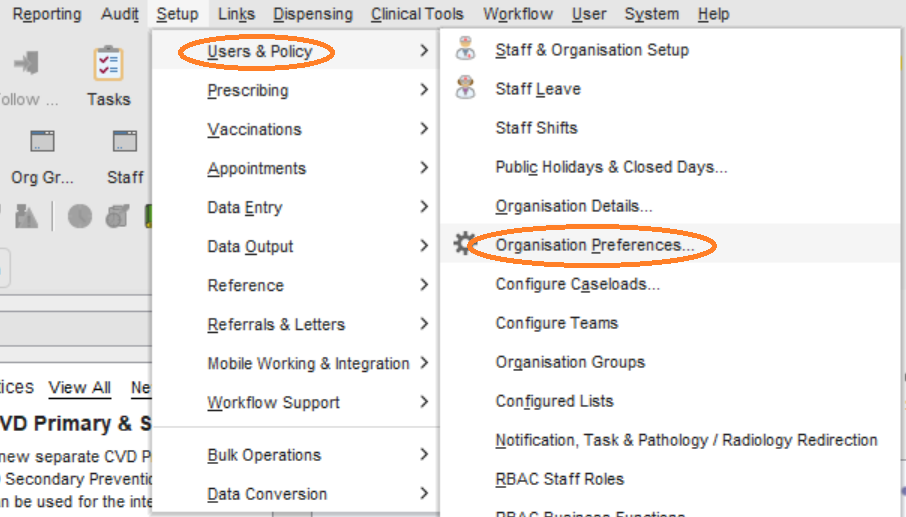
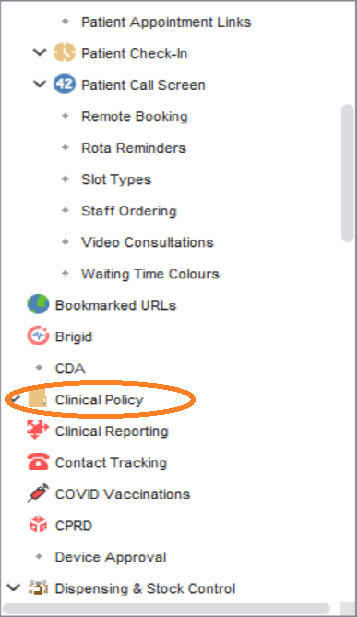
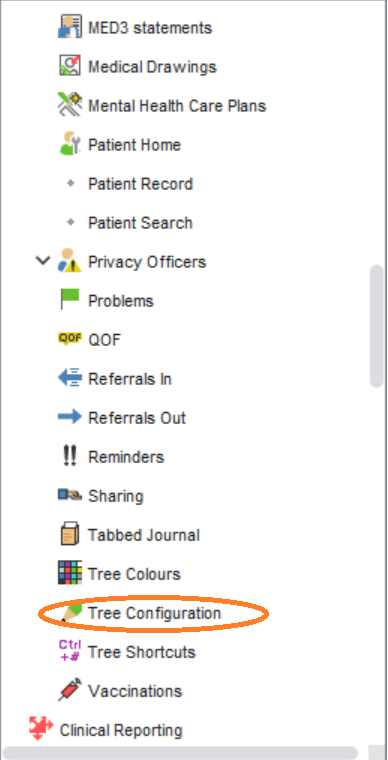
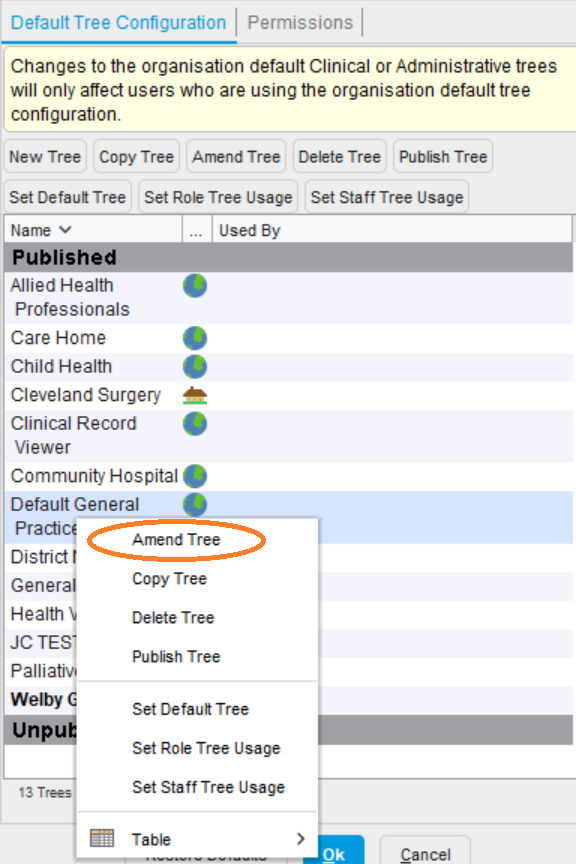
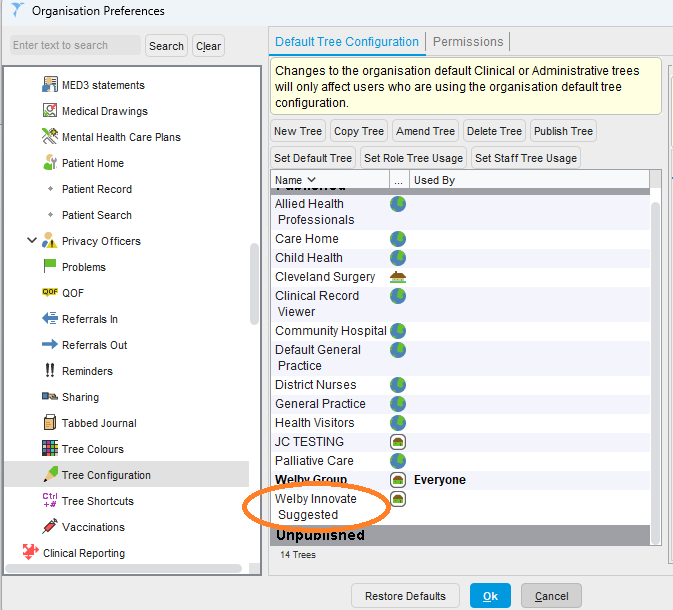
Find the tree that you wish to amend, or consider starting with our suggested clinical tree (more below).
Right click, then click Amend Tree
There are 2 ways to find what you would like to add into the Clinical Tree.
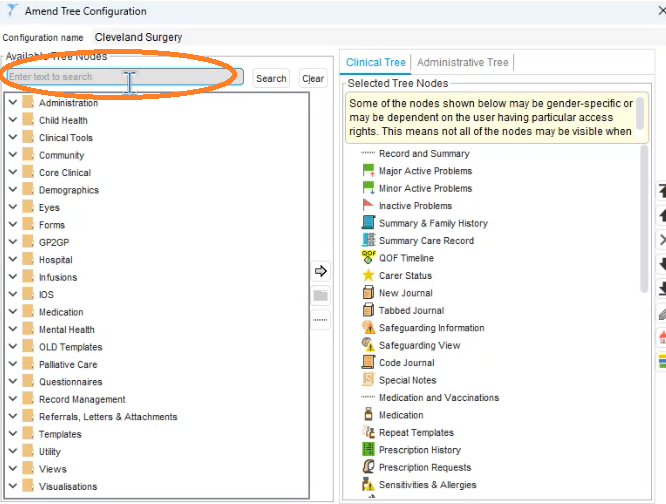
The first way is to free text search into the search bar, press search, this will then appear in the left hand column.
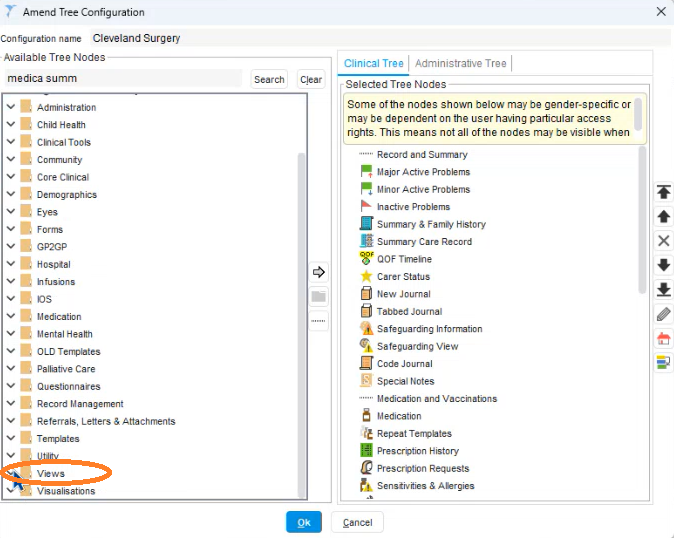
The second way, if you know what you are looking for you can click directly onto the list, we have used 'Medical Summary' as an example - you would firstly click Views, then Medical summary
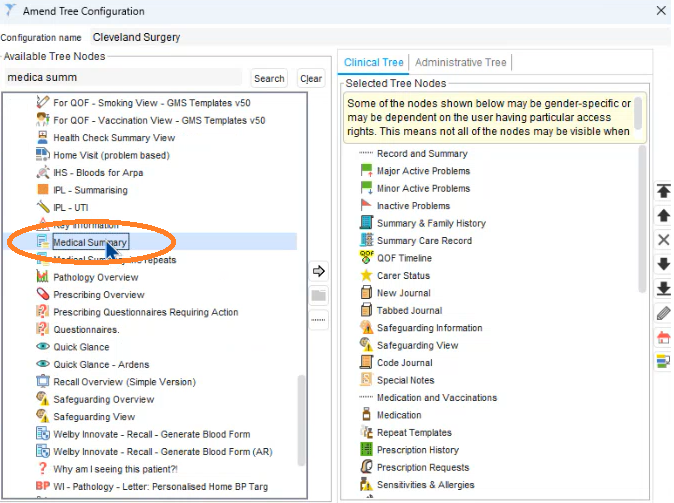
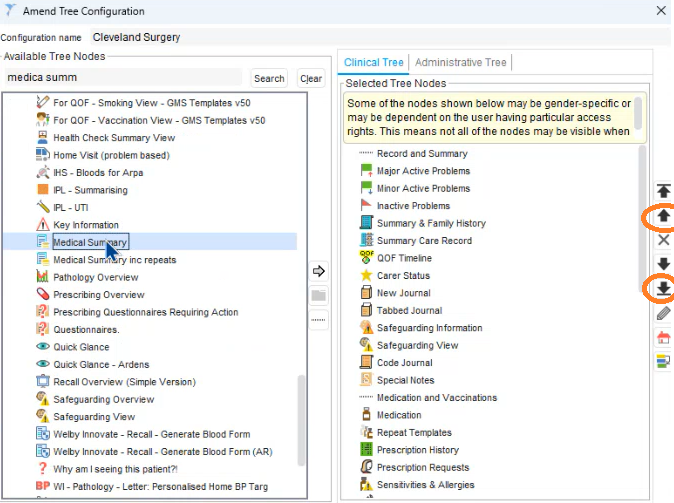
Once you have found what you would like to add, double click it, it will then go into the right side column, then you can use the arrows on the right side to move it in the section you would like it to sit in.
Suggested Clinical Tree
We have created a suggested clinical tree in SystmOne and you can find it by carrying out the first 3 steps above. We advise you to use this as a starting point and customise this list to suit your own practice preferences.
There are certain views we've created specifically to go on the Clinical tree:
- Medical Summary - an overview of key diagnoses and medical events in a patient record
- Pathology Overview - a summary of outcomes from recent results
- Prescribing Overview - key information to review medication and buttons to launch our various prescribing protocols
- Questionnaires - displays questionnaires we'd like the patient to complete and any questionnaires completed in the last 18m
- Recall Overview - information displayed in the Recall Overview plus links to our Recall Templates
- Why am I seeing this patient?! - displays any possible reason for follow up identified in any of our systems plus links to relevant templates and further information
Was this article helpful?
That’s Great!
Thank you for your feedback
Sorry! We couldn't be helpful
Thank you for your feedback
Feedback sent
We appreciate your effort and will try to fix the article