We have a new way of bulk sending messages with letters attached. This helps with sending much more information to a patient.
Or if you prefer here is a step by step guide:
Within Clinical reporting you will find the Invite reports
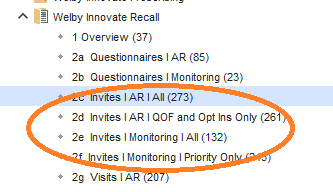
The correct reports that need to be run to be able to bulk send messages with letters attached look like this, you will find them in most sections. We have tried to include information in each title.

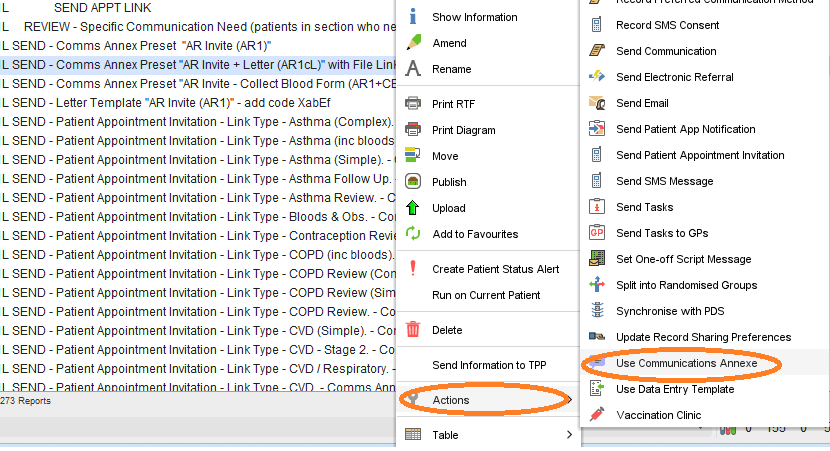
Once you have found the report, you will need to run this. When the green tick appears on the right side of the report you are now able to send out the bulk letters by right clicking on the report, click Actions then Use communication Annexe.
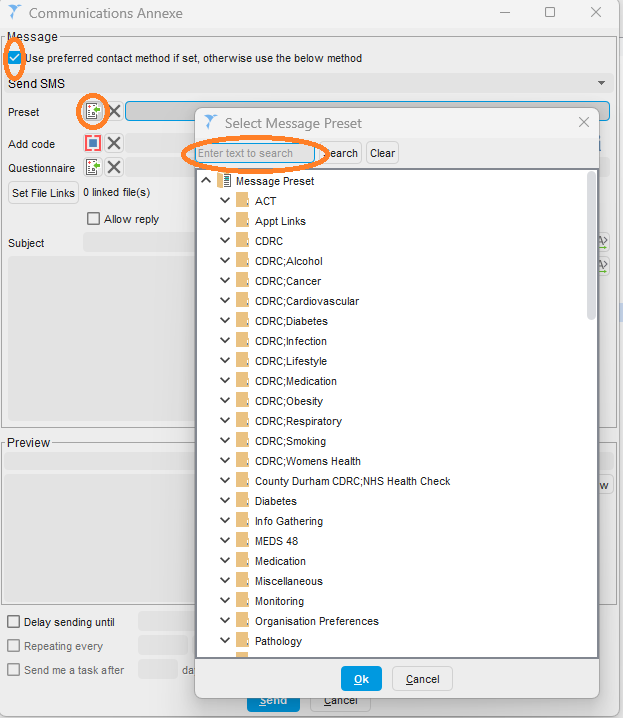
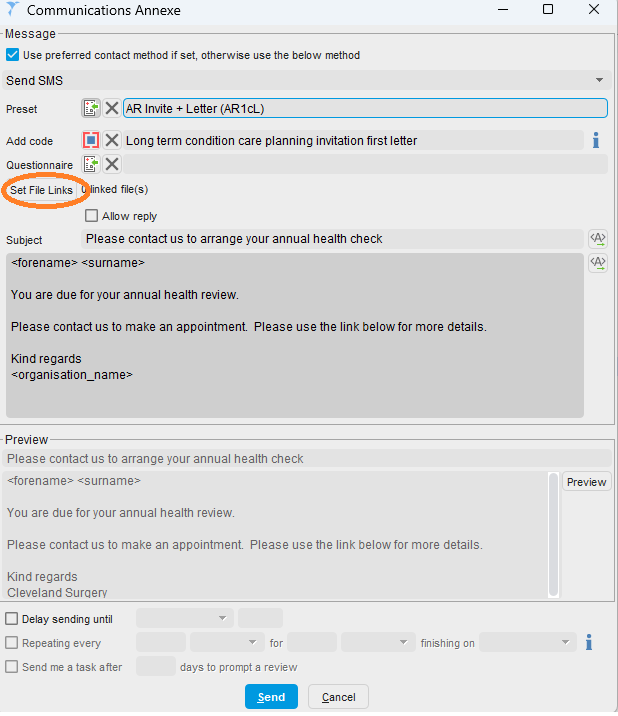
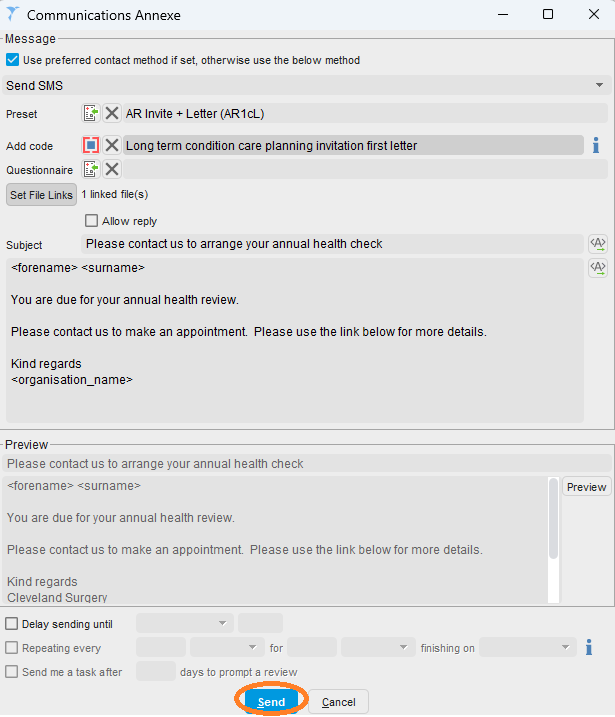
Tick the Use preferred contact method, Click Preset then in the text bar input the code from the report title - e.g. (AR1cL)
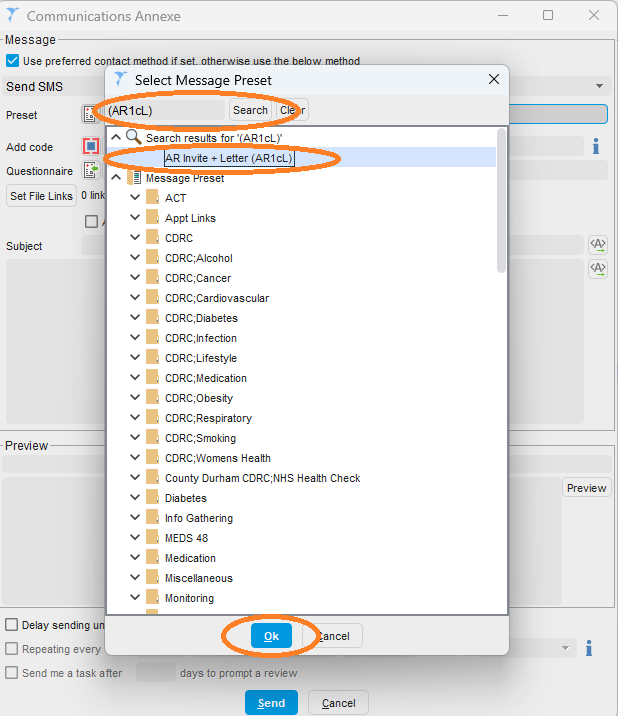
Click search, click on the title that appears in the search results then click on OK.
Click Set File Links to choose the letter you need.
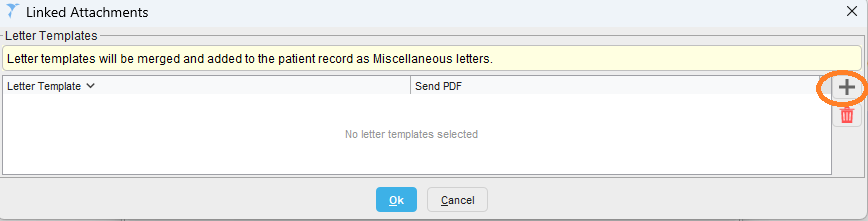
Click on the + box
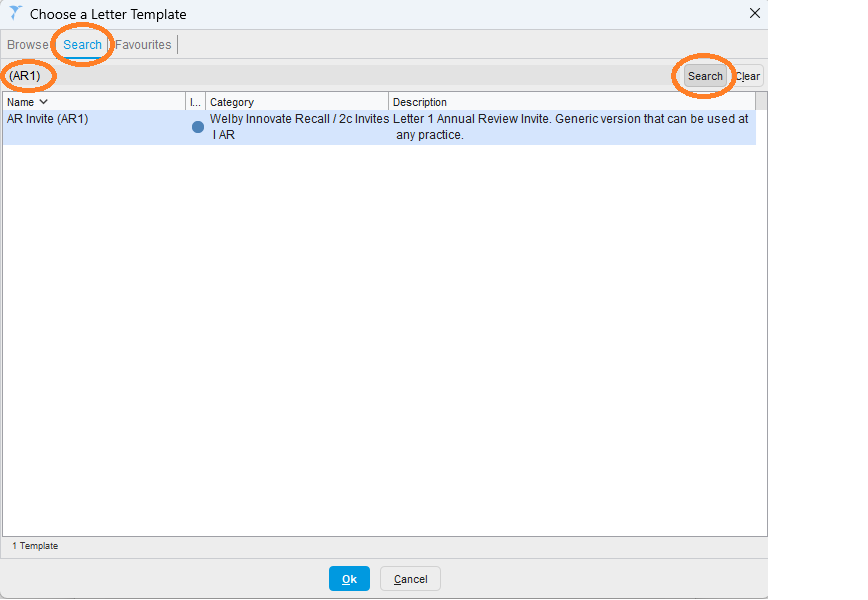
Choose the search tab at the top of the pop up and type in the letter code from the report title. Click on the letter in the body of the search then click OK.
We recommend ticking the box to send these out as PDF's, then click Ok.
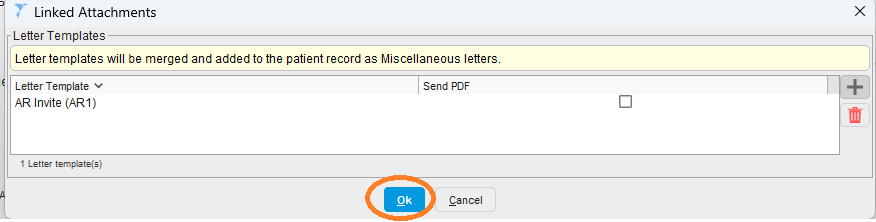
The letter is now attached, so you can click Send.
As there is a lot of information being sent out it may be worth you sending these out in smaller sections as these can take a while to send, you may have a open a separate SystmOne just to run these.
Was this article helpful?
That’s Great!
Thank you for your feedback
Sorry! We couldn't be helpful
Thank you for your feedback
Feedback sent
We appreciate your effort and will try to fix the article