This is a simple guide on how to apply Auto Review Rules
While in SystmOne look towards the bottom of the screen, you will see these kind of number, double click on the second figure across.

This will bring you to list of results, at the top left of this screen you will see the 'Reports Ready to Action. Click this so it shows blue.

There is a box just below that should be unticked if you are Admin staff.

You can now click on 'Apply Auto-Review Rules'.
SystmOne will take time to run through these reports.

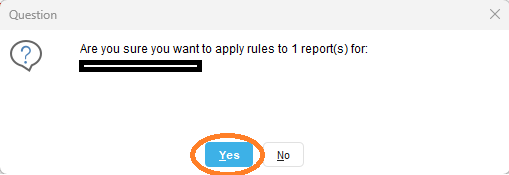
A Pop-up box will appear asking 'Are you sure you want to apply rules to reports for' with a list of patient names, click yes and this will apply rules for those patients in this list.
This pop up box will appear of all results that are being to actioned:
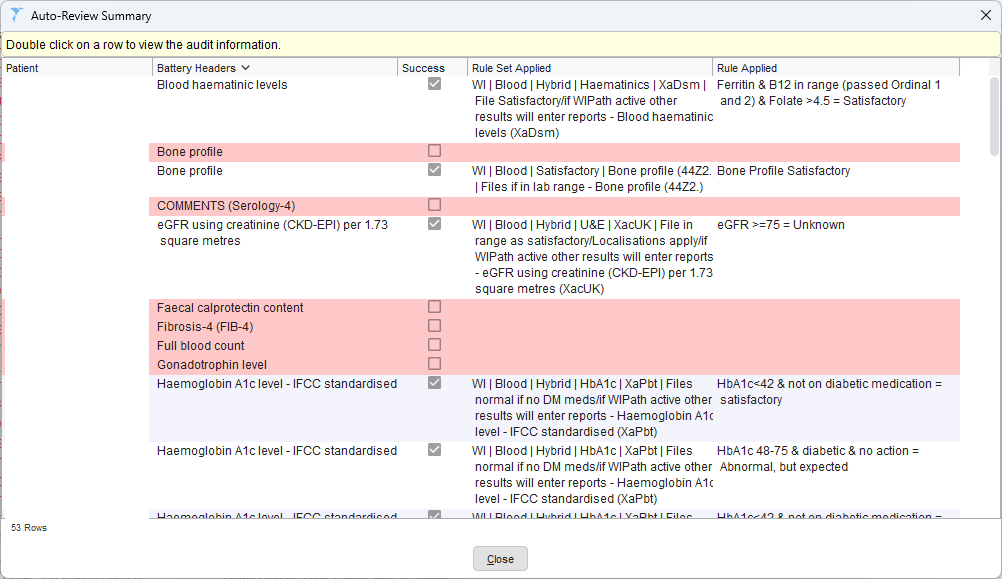
White = rules have been applied
Red = rules have not worked so these results have not been filed.
You can click of each result for more information.
We recommend that if you have Admin staff carrying out this work, that it is done 3 x daily, i.e. first thing in the morning, Midday and towards evening.
If you experience any results not being filed that you would expect to be, please contact us to report this and we can review the rules that apply in your area.
Was this article helpful?
That’s Great!
Thank you for your feedback
Sorry! We couldn't be helpful
Thank you for your feedback
Feedback sent
We appreciate your effort and will try to fix the article